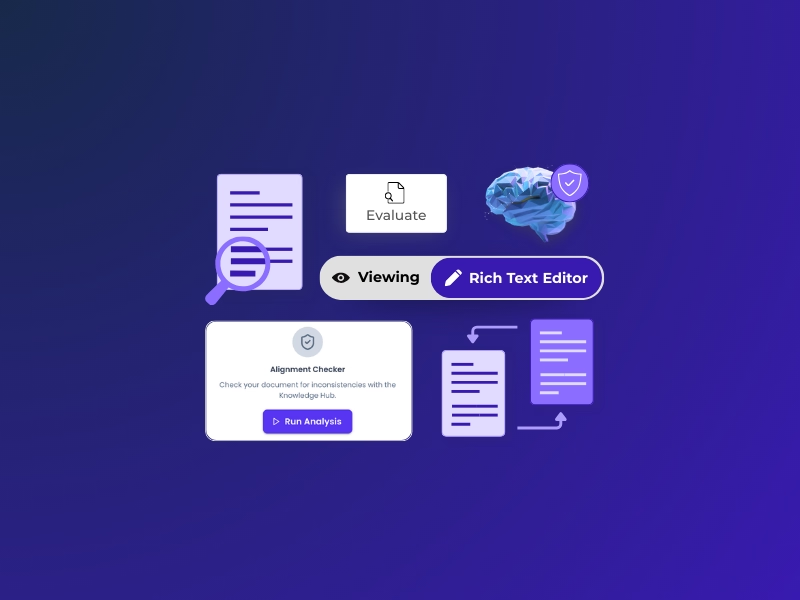
How to Use the Alignment Checker: Find Conflicts, Gaps, and Inconsistencies
Learn how to run alignment checks across your Product Knowledge Hubs—in a single hub, across multiple hubs, and in real time while you write. Step-by-step guide inside.
March 3, 2026
14
min read
A step-by-step guide to running alignment checks across your Product Knowledge Hubs—in a single hub, across multiple hubs, and in real time while you write.
Your Product Knowledge Hub grows every time a team member adds research, specs, market analysis, or technical documentation. That’s exactly the point—it becomes the single source of truth for your product.
But as knowledge grows, inconsistencies can emerge. Different team members may contribute conflicting information at different stages. Technical specs may drift from product requirements. Strategic direction may shift without all documents reflecting the change.
The Alignment Checker solves this. It’s an AI evaluation agent that scans your hub knowledge for conflicts, gaps, and inconsistencies—delivering a prioritized report with severity levels and source attribution.
Here’s how to use it.
What the Alignment Checker Evaluates
When you run the Alignment Checker, it performs a multi-dimensional analysis across your hub knowledge:
Factual inconsistencies: Conflicting data points across documents (e.g., different material specifications, conflicting test results, inconsistent performance claims)
Regulatory and compliance gaps: Missing compliance documentation, unaddressed regulatory requirements, or claims that don’t align with certification status
Technical specification conflicts: Mismatches between design requirements, engineering specs, and manufacturing capabilities
Terminology inconsistencies: Imprecise or conflicting technical language that could cause miscommunication across teams
Knowledge gaps: Missing information that could cause delays or misalignment downstream
Strategic and market alignment issues: Product direction that conflicts with stated business objectives or market positioning
Process violations: Missing stage-gate deliverables, skipped requirements, or workflow gaps
Every finding is categorized by severity (Low, Medium, High) and linked directly to its source documents, so you can trace exactly where the misalignment originates.
Option 1: Single Hub Alignment Check
Use this when you want to evaluate alignment within one Product Knowledge Hub—your most common use case for pre-gate review preparation or routine consistency checks.
How to Run It
Navigate to any Product Knowledge Hub — Open the hub for the product you want to evaluate.
Click “Evaluate” in the hub navigation — You’ll find this in the top navigation bar of your hub.
Select the Alignment Checker agent — Choose Alignment Checker from the available evaluation agents.
Select specific documents to include (optional) — By default, the Alignment Checker evaluates all knowledge in the hub. You can narrow the scope to specific documents if needed.
Click “Evaluate” to run — The analysis completes in seconds.
Review your alignment report — Results appear in the Rich Text Editor, organized by severity (High → Medium → Low) with direct source links.
💡 Pro tip: Run the Alignment Checker right before your gate review. Share the report with your review committee to show that all elements have been evaluated for consistency. It builds confidence and saves time during the review itself.
Navigate to any Product Knowledge Hub — Start from the primary hub you want to evaluate.
Click “Evaluate” and select the Alignment Checker
Select additional hubs to compare against — A multi-select dropdown lets you choose which other Product Knowledge Hubs to include in the analysis.
Select specific documents (optional) — Focus the evaluation on particular documents across hubs, or leave it broad for a comprehensive check.
Click “Evaluate” to run
Review cross-hub findings — The report highlights cross-product conflicts, duplicate efforts, and portfolio-level inconsistencies with source attribution from each hub.
The Cross Hub Alignment Checker is especially valuable when product lines share technologies, materials, or manufacturing processes. It catches situations where two teams may be developing conflicting solutions or making contradictory assumptions about shared resources.
Option 3: Real-Time Alignment Checking in the Editor
Click the Evaluate tab in the right sidebar — The Alignment Checker sits alongside Chat, Knowledge, and Styler in the sidebar.
Run an alignment check — The evaluation runs against the document you’re currently editing, checking it against the broader hub knowledge.
Review and address findings inline — Misalignments surface in the sidebar while you’re still in the document, so you can fix issues immediately.
💡 Pro tip: Use the RTE sidebar Alignment Checker when drafting PRDs, technical specifications, or any document that references data from multiple sources. It’s the fastest way to catch issues at the point of creation.
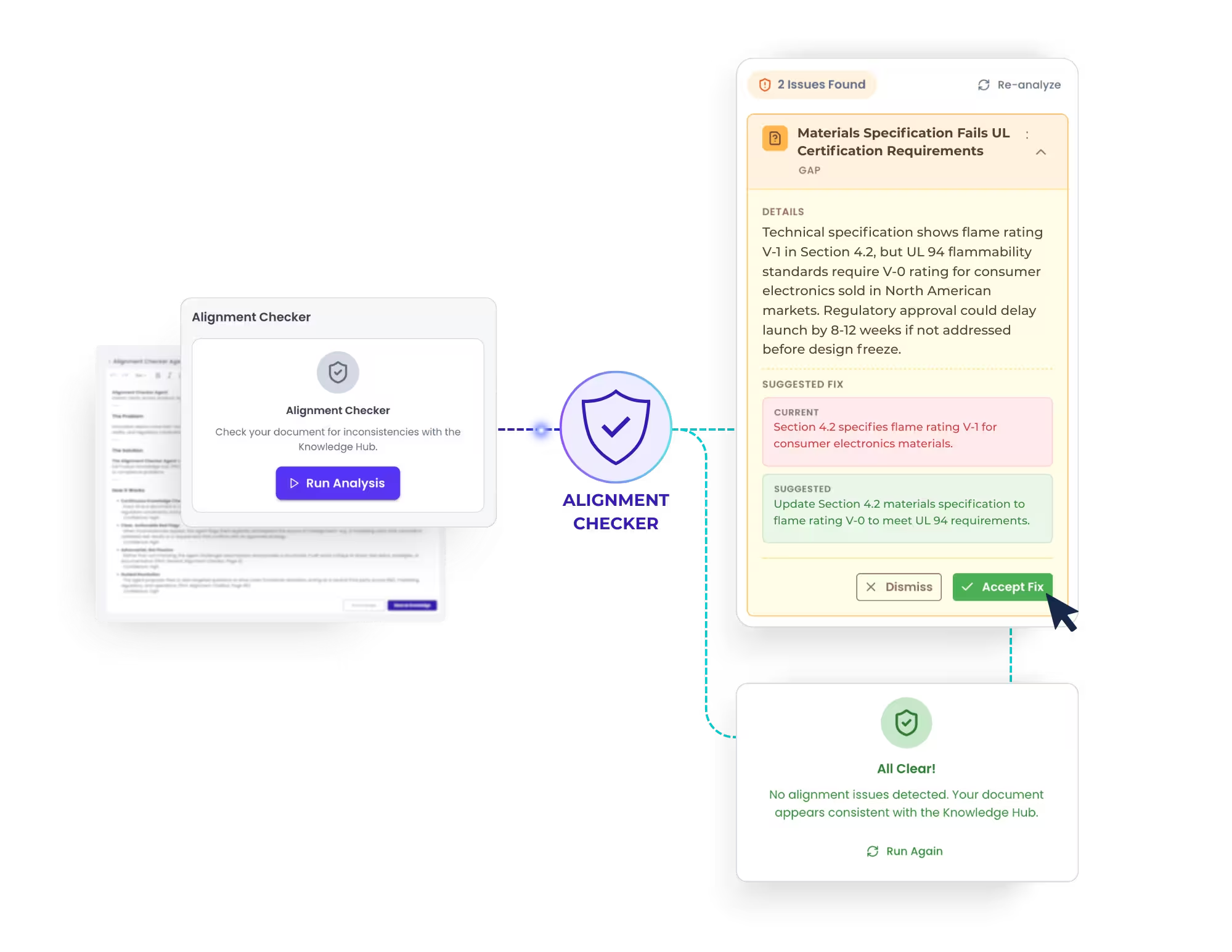
Narratize Alignment Checker: Select documents or hubs to analyze and immediately get a conflict report with suggested fixes
Reading Your Alignment Report
Every Alignment Checker report follows a consistent format designed for quick action:
Header summary: Total issues identified with a severity breakdown
Issue cards: Each finding includes the issue type, a brief title, detailed description, specific findings, and a recommended action
Severity levels: Issues ranked as High (potential production or compliance impact), Medium (could cause delays or confusion), or Low (minor inconsistencies worth addressing)
Source attribution: Direct links to the knowledge sources where conflicting information was found, with dates
Suggested actions: Specific recommendations for resolving each finding
Best Practices for Getting the Most from the Alignment Checker
Keep your hub knowledge current. The Alignment Checker evaluates what’s in your hub. The more comprehensive and up-to-date your knowledge, the more valuable the analysis. Encourage your team to add knowledge regularly—meeting notes, research findings, updated specs, market analysis—so the Alignment Checker has a complete picture to evaluate.
Run it at transition points. The highest-value moments for alignment checking are stage-gate transitions, cross-functional handoffs, and before any major decision point. Build it into your team’s workflow at these milestones.
Use Cross Hub checks for shared platforms. If you have product families that share technologies, materials, or manufacturing processes, run Cross Hub alignment checks regularly. This is where the most expensive misalignments hide.
Share reports with stakeholders. Alignment reports generated in the Rich Text Editor can be shared, exported, or used as artifacts in your stage-gate process. They serve as evidence of due diligence and help facilitate faster review discussions.
Address high-severity findings first. Not every finding requires immediate action. Focus on High-severity issues that could impact production, compliance, or strategic direction. Medium and Low findings can be addressed in your normal workflow cadence.
Start Using the Alignment Checker Today
The Alignment Checker requires no setup and no configuration. If you have a Product Knowledge Hub with knowledge in it, you can run an alignment check right now:
Open any hub → Click Evaluate → Select Alignment Checker → See results instantly.
Questions? Reach out to your Customer Success Manager for a walkthrough, or explore the Alignment Checker in any of your active hubs.
Alignment Checker Guide
Alignment Checker Guide | Narratize
✦ narratize
How bold ideas get told.
Step-by-Step Guide
Find Conflicts, Gaps & Inconsistencies with the Alignment Checker
The Alignment Checker is an AI evaluation agent that scans your Product Knowledge Hub for misalignments—delivering a prioritized report with severity levels and source attribution. Run it in a single hub, across hubs, or in real time while you write.
Multi-Dimensional Analysis
What the Alignment Checker Evaluates
Factual InconsistenciesConflicting data across documents—specs, test results, performance claims
Technical Spec ConflictsMismatches between design requirements, engineering specs, and manufacturing
Terminology InconsistenciesImprecise or conflicting language causing cross-team miscommunication
Knowledge GapsMissing information that could cause delays or misalignment downstream
Strategic & Market AlignmentProduct direction conflicting with business objectives or positioning
Process ViolationsMissing stage-gate deliverables, skipped requirements, workflow gaps
How to Use It
Three Ways to Run Alignment Checks
Choose the method that fits your workflow. Each delivers a prioritized report with severity levels and source attribution.
1
Single Hub Alignment Check
Best for pre-gate reviews and routine consistency checks
Open your Product Knowledge Hub
Navigate to the hub for the product you want to evaluate.
Click “Evaluate” in the top navigation
Find the Evaluate button in your hub’s navigation bar.
Select the Alignment Checker agent
Choose Alignment Checker from the available evaluation agents.
Scope your analysis
Select specific documents to include, or leave default to evaluate all hub knowledge.
Optional
Click “Evaluate” to run
Analysis completes in seconds.
Review your alignment report
Results appear in the Rich Text Editor, organized High → Medium → Low with source links.
Pro tip: Run right before your gate review. Share the report with your review committee to show all elements have been evaluated for consistency.
2
Cross-Hub Alignment Check
Best for portfolio management, shared platforms, and product families
Navigate to your primary Product Knowledge Hub
Start from the hub you want to use as the anchor for comparison.
Click “Evaluate” → Select Alignment Checker
Same starting flow as Option 1.
Select additional hubs to compare
Use the multi-select dropdown to include other Product Knowledge Hubs in the analysis.
Key Step
Scope specific documents
Focus on particular documents across hubs, or go broad for comprehensive analysis.
Optional
Run & review cross-hub findings
Report highlights cross-product conflicts, duplicate efforts, and portfolio-level inconsistencies with source attribution from each hub.
Pro tip: Essential when product lines share technologies, materials, or manufacturing processes. Catches conflicting solutions and contradictory assumptions about shared resources.
3
Real-Time Alignment in the Editor
Best for catching issues at the point of creation
Open any document in the Rich Text Editor
Start writing or editing your document as usual.
Click the Evaluate tab in the right sidebar
The Alignment Checker sits alongside Chat, Knowledge, and Styler in the sidebar.
Run alignment check
Evaluates your current document against the broader hub knowledge.
Review & fix findings inline
Misalignments surface in the sidebar so you can resolve issues immediately without leaving the editor.
Pro tip: Use when drafting PRDs, technical specifications, or any document that references multiple sources. The fastest way to catch issues at the point of creation.
Understanding Results
Reading Your Alignment Report
Header Summary
Total issues identified with a breakdown by severity level.
Issue Cards
Each finding includes type, title, description, and recommended action.
Source Attribution
Direct links to conflicting sources with dates for full traceability.
Suggested Actions
Specific recommendations for resolving each finding efficiently.
High Severity
Production or compliance impact. Address immediately.
Medium Severity
Could cause delays or confusion. Plan to resolve.
Low Severity
Minor inconsistencies. Address in normal workflow.
Maximize Value
Best Practices
Keep hub knowledge current
Add meeting notes, research, specs, and market analysis regularly. The more comprehensive your knowledge, the more valuable the analysis.
Run at transition points
Stage-gate transitions, cross-functional handoffs, and major decision points deliver the highest-value alignment checks.
Use Cross-Hub for shared platforms
Product families sharing technologies, materials, or processes need regular cross-hub checks. This is where costly misalignments hide.
Share reports with stakeholders
Export alignment reports as evidence of due diligence. Use them in gate reviews to facilitate faster, more confident decisions.
Experience Narratize Running on Your Hardest Innovation Challenges.
Schedule a demo and watch your team's expertise become intelligence the whole organization can use.
.gif)